





Gowebkart Campaigns
Email marketing software
01Overview: what Campaigns is
Gowebkart Campaigns is a web application for email marketing. You connect the email account you already use (Gmail, Outlook / Microsoft 365, Yahoo, Zoho, SendGrid, Brevo, Amazon SES or any SMTP server), bring in the people you want to write to, design an email, send it to everyone at once or at a time you choose, and then see who opened it and what they clicked. It runs in the browser on a laptop, tablet or phone. Nothing is installed.
It is made for businesses that send to their own customers: shops, schools and coaching centres, clinics, agencies, real-estate, travel, SaaS and anyone with a list. You can use it on a subscription at campaigns.gowebkart.in (start free, upgrade when you grow), or buy the application and have Gowebkart set it up on your own server, for your business or to run your own email marketing service.
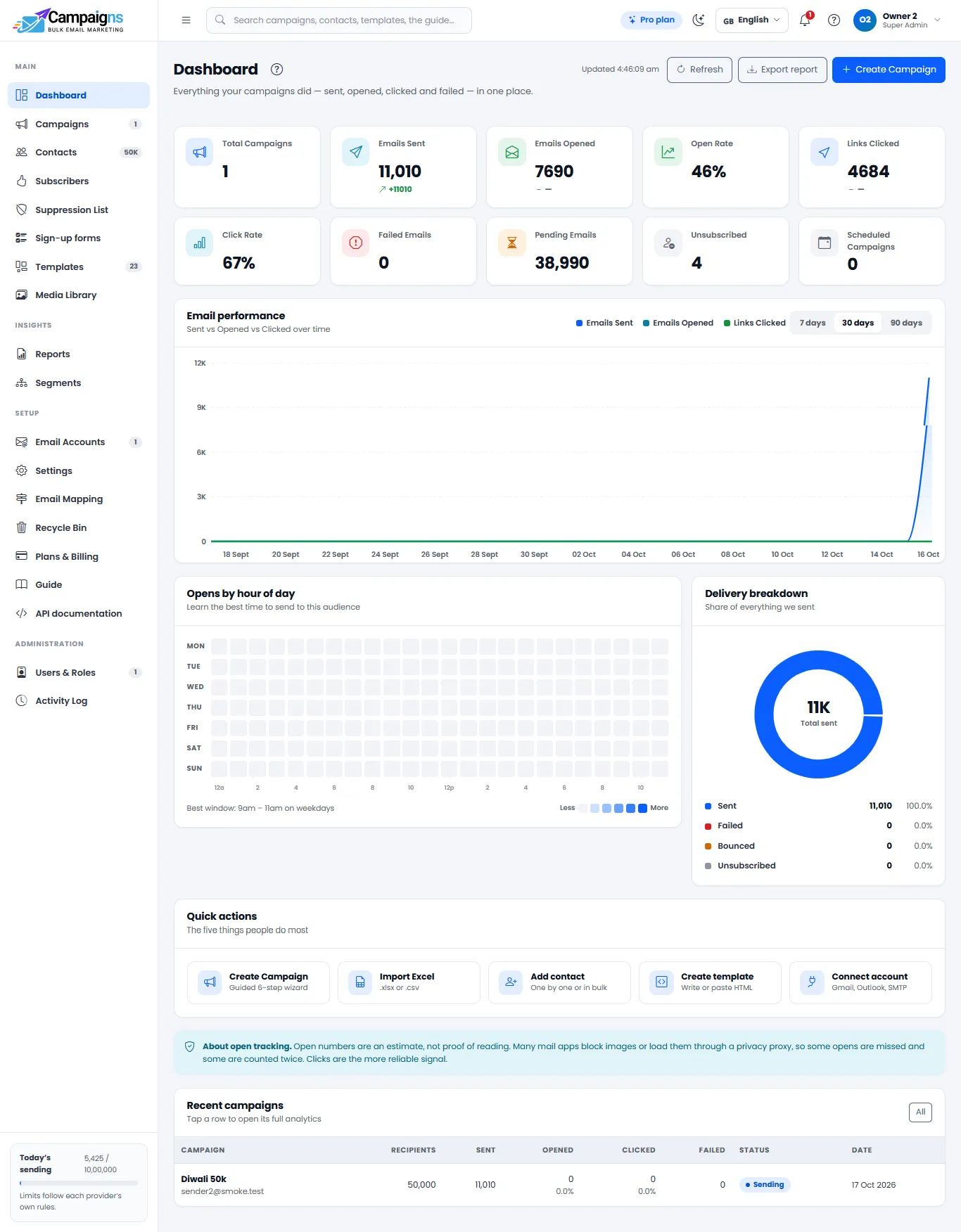
- Main: Dashboard, Campaigns, Contacts, Subscribers, Suppression List, Sign-up forms, Templates, Media Library
- Insights: Reports, Segments
- Setup: Email Accounts, Settings, Email Mapping, Recycle Bin, Plans & Billing, Guide, API documentation
- Administration: Users & Roles, Activity Log
In short, what it can do: import contacts from Excel or CSV (up to 50,000 rows per file); 22 ready-made templates and four ways to make your own, including a drag & drop builder; send now, schedule, or send in batches; open and click tracking with reports you can download; segments and A/B tests; sign-up forms for your website with double opt-in; API keys, webhooks, transactional emails and a WooCommerce plugin; team members with roles and permissions; two-step sign-in and Sign in with Google / Microsoft; a Recycle Bin; and a dashboard that works in 21 languages. Plans go from Free up to 5,00,000 contacts, billed monthly, every 6 months or yearly; in Indian rupees in India and in US dollars everywhere else.
Note: Every company has its own separate workspace. Your contacts, templates, campaigns, reports and settings are yours alone; no other company can see or touch them. Gowebkart keeps daily backups of the service, and everything you delete waits 30 days in your Recycle Bin.
Tip: The flow is always the same: connect an email account, add contacts, make a template, send a campaign, read the results. The topics below follow that order, then cover the rest A to Z.
02Getting started: sign up and sign in
A new company starts on the Free plan, which never ends. You can sign up yourself, or Gowebkart creates the company for you and emails the sign-in link.
Sign up
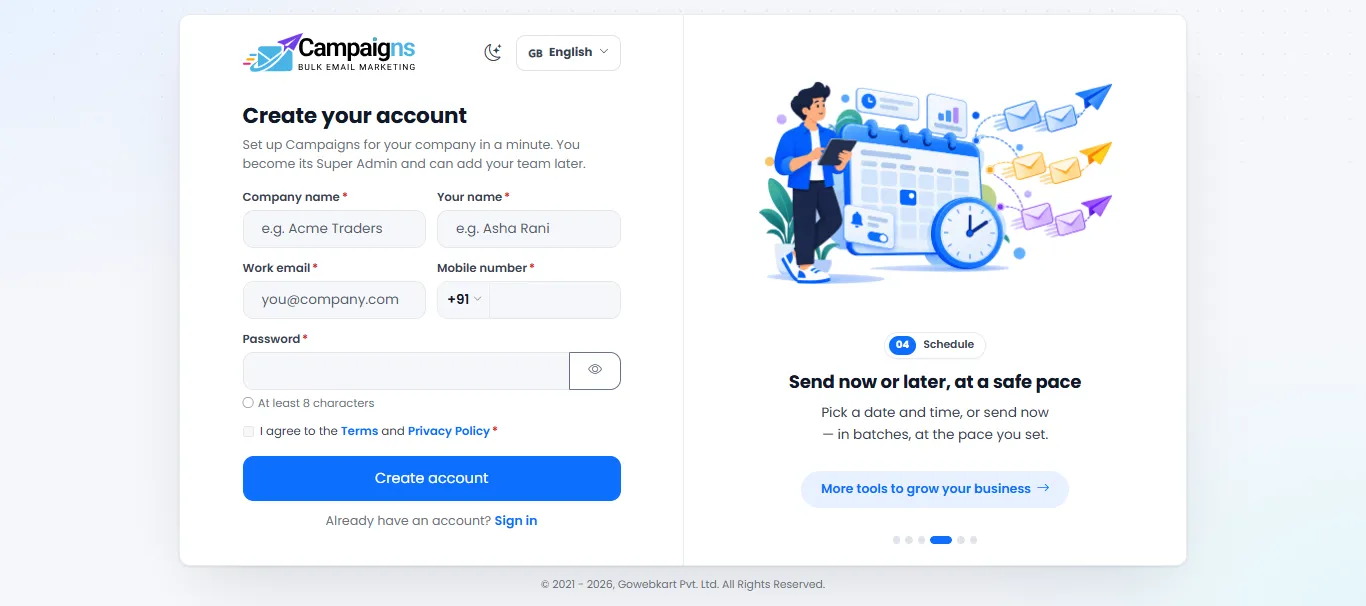
Open the app and press Sign up. Enter your company name, your name, email, mobile number (pick your country code from the list, +91 for India) and a password, accept the Terms and Privacy Policy, then press the link in the confirmation email. The first person is the company's Super Admin. The country of your mobile number sets your currency: rupees in India, US dollars elsewhere.
Sign in
Sign in with your email and password, or with Google / Microsoft when those buttons are shown (use the same email address your company added you with). Tick "Keep me signed in" on your own device.
Forgot your password?
Press Forgot password on the sign-in page and follow the email. Too many wrong attempts lock the sign-in for a short while; this protects your account.
Know the screen
The left menu holds every page. The top bar has search (campaigns, contacts, templates, the guide), the language switch, the light / dark switch, the bell for notices, your plan, and your profile menu. On a phone the main pages sit in a bar at the bottom. The app first opens in your browser's language; change it any time from the top bar.
Keep it on your phone
On a phone or tablet, open the browser menu and choose Add to Home screen. The Campaigns icon then opens the app like any other app, full screen.
Tip: A red * next to a field's name means that field must be filled in before you can save or continue. The in-app Guide (left menu) has a chapter for every page and marks which plan each feature needs.
03Dashboard
The Dashboard is the first page after sign-in: a picture of how your email is doing, and the shortcuts people use most.
- Numbers for the period you choose: sent, opened, clicked, bounced, unsubscribed
- Performance over time: sent vs opened vs clicked
- Best time to send: a heatmap of when your audience opens, by day and hour
- Share of everything sent: delivered, bounced, failed
- Quick actions: create a campaign, import contacts, make a template, connect an account
- Recent campaigns: tap a row to open its full analytics
- Today's sending and your plan's limits, always in view
Note: The bell collects notices for you: a campaign finished or paused, a template designed for you arrived, a campaign waits for your approval, your plan is ending. The plan badge next to it opens Plans & Billing.
04Email Accounts: connect your sender
Campaigns sends through your own email account, so your customers see your real address and replies come back to you. Open Email Accounts in the left menu and press Connect account.
Choose your provider
Gmail, Yahoo Mail and Zoho Mail need an "App Password" instead of your normal password; the card shows the exact steps and links to the right page on the provider's site. Microsoft 365 work accounts need "Authenticated SMTP" switched on by your IT admin. SendGrid, Brevo and Amazon SES use an API key or SMTP credential from their own dashboard. Anything else: choose Custom SMTP and enter the server name, port and login from your provider's help page.
Or sign in with Google / Microsoft
When those buttons are shown on the Connect page, press one and allow access; no password is typed into Campaigns. For a personal Outlook / Hotmail address this is the only way.
Test, then save
Fill in the address and the password or key, press Test Connection, then Save Account. The account shows a green Connected badge. Press Send test email and check your own inbox.
Check the domain
Press Domain check on the account. It reads your domain's SPF, DKIM and DMARC records and shows what is missing, with the exact records to add. A verified domain is the single biggest step towards the inbox.
Set a daily limit
Each account has its own daily limit, in line with what your provider allows. Campaigns never sends past it; a campaign simply continues the next day.
Important: A free mailbox address (@gmail.com, @yahoo.com, @outlook.com) can only send through its own provider, never through another server. For bulk email, send from an address on your own domain, for example hello@yourcompany.com.
Note: A newly connected account warms up: 300 emails on its first day, then 600, 1,200 and so on, doubling each day for 7 days. A campaign that reaches today's amount pauses and carries on by itself the next day. Campaigns > "How sending speed works" shows the day-by-day table for each account.
05Contacts: import, groups, tags and fields
Contacts are the people you email. Bring them in from a file, type them in one by one, let your website form add them, or let your own program add them through the API.
Prepare the file
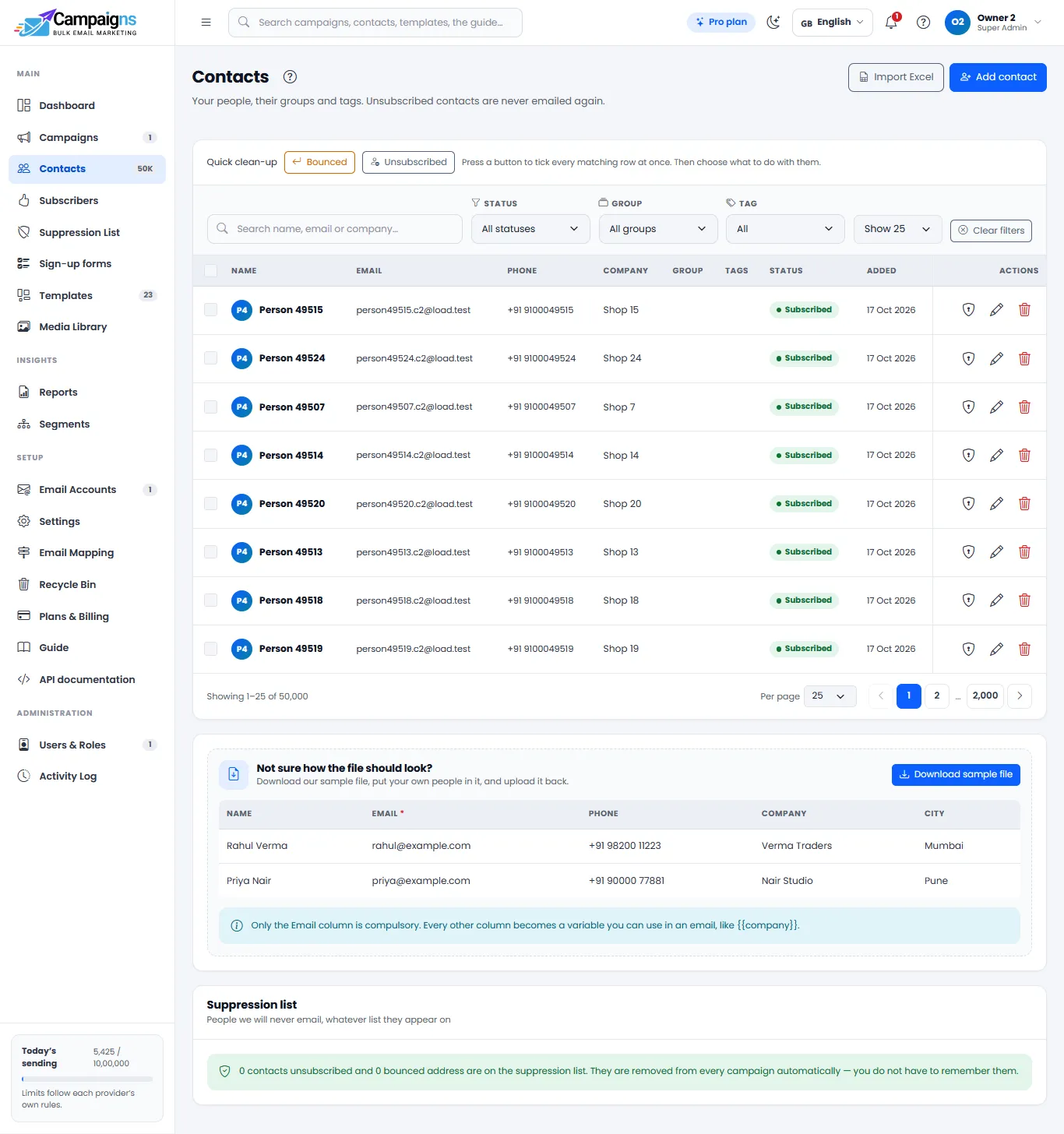
One person per row with a column for the email address; name, company, city, phone and your own fields are optional. Excel or CSV, up to 50,000 rows (20 MB) per file; split bigger lists.
Import
Open Contacts, press Import Excel, choose the file and match each column to a Campaigns field (it is guessed for you; just check it). The check screen counts valid rows, broken addresses and duplicates separately.
Import valid contacts
Broken and duplicate rows are skipped, not saved. Before anything is saved, the whole file is checked against your plan's contact limit: if it does not fit, nothing is imported and the screen says how many fit.
Add one person by hand
Press Add contact, type the name and email, pick a group and tags, and save.
Organise
Groups are named lists you pick when sending (for example "Delhi customers"). Tags are labels for filtering ("vip", "2026-fair"). Custom fields hold your own details such as city, course or product, and can be used inside emails. You can also record how you got each person's permission.
Find, export, clean
Search by name, email or company; filter by group, tag or city; tick rows (or Select all) to add to a group, export to Excel, or delete. Deleted contacts wait 30 days in the Recycle Bin.
Note: Contacts count towards your plan by the month: everyone subscribed now plus anyone added this month. Only email people who agreed to hear from you; a clean, honest list is what keeps you out of spam.
06Subscribers and the Suppression List
Two small pages keep your list honest: Subscribers holds the people who said "yes" through your emails, and the Suppression List holds the people who must never be emailed again.
The Subscribe button
In step 5 of the campaign wizard, turn on the Subscribe button, or put {{subscribe_url}} anywhere in your template. When a reader presses it, their name, email and the campaign they came from are saved on the Subscribers page.
Email your subscribers
In step 2 of a new campaign, pick "People who subscribed" to write to everyone who joined this way.
Suppression List
Bounced and unsubscribed addresses are added here automatically and skipped in every future send. You can add an address by hand too (reason: manual, complaint, invalid), or import a list of addresses to block.
Per account or everywhere
Settings > Unsubscribe > "Apply globally" decides whether opting out of one sending account blocks that person from all of your accounts. Erased people stay blocked for ever as a one-way code.
07Templates: four editors and 22 ready designs
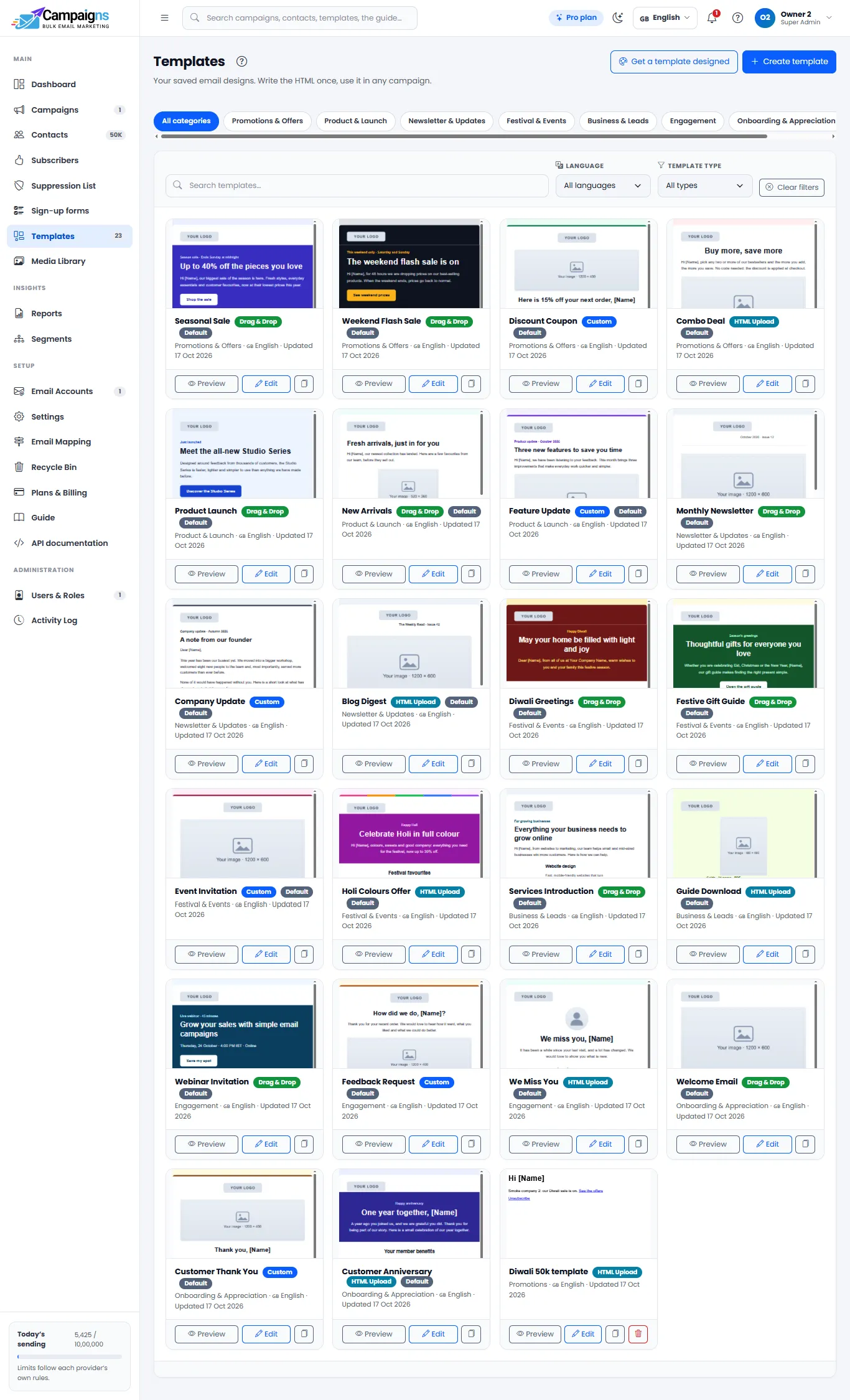
A template is the design and words of your email, saved so you can use it again. Open Templates and press Create template, or start from one of the 22 ready-made designs: offers, launches, newsletters, festivals, events, welcome and thank-you emails.
Pick a way to build
Drag & Drop Builder: drag blocks (heading, text, image, button, divider, social links) into columns; a blue line shows where a block lands. Custom Editor: design fields on one tab and the HTML on the other, each change shown live. HTML Upload: paste or upload your own HTML. Simple text: a plain letter-style email with bold, links, lists and colours.
Name and language
Give it a name you will recognise later ("Diwali Offer 2026") and pick the Email Language label so your team can tell templates apart.
Add pictures and files
The Images tab and the Media Library share the same pictures: upload a JPG, PNG, GIF or WebP, crop it, and press Insert. Big photos, even straight from a phone, are resized for you. Up to 3 files (PDF, JPG, PNG, DOCX, 1 MB together) can travel with the email when your plan includes attachments.
Personalise
"Insert Dynamic Field" drops in {{name}}, {{company}} or any of your own fields; each person gets their own details when it is sent. An image can also change per send, from a variable, for example a product picture in an order email.
Social links and footer
Add your Facebook, Instagram, LinkedIn, YouTube, X, WhatsApp and website as small round icons. Put your business's postal address in the footer; many countries' laws require it.
Preview and save
The right-hand side shows exactly what the reader will see, on desktop and on mobile; Preview Template opens it full-screen. Press Save and the template appears in the campaign wizard. Duplicate a template to make a variation.
Important: Not allowed in any template or file: nude or sexual pictures, links to adult websites, sexually explicit text, and anything that supports terrorism. Every email is checked before it goes out; a doubtful one waits for a quick look by Gowebkart.
Tip: An unsubscribe link is added for you when your template has none. On the Free plan a small "Sent with Campaigns by Gowebkart" line is added at the bottom; the paid plans send without it. On the Pro plan, press "Get a template designed" and Gowebkart designs one for you every month; it arrives at the top of your Templates with the badge "Designed by Gowebkart".
08Media Library: images for your emails
Every picture you use in an email lives in the Media Library. Open it from the left menu or from the Images tab inside any editor; both show the same images.
Upload
Press Upload image (JPG, PNG, GIF or WebP) or paste the link of an image that is already online. Big photos are made 1200 px wide, so emails stay light on mobile data.
Crop and compress
Each upload first opens "Crop and compress": drag the corners to cut it or keep the whole picture, and slide Quality (10–100%). The original and the result are shown side by side with their file size (KB / MB), pixels and quality; press a picture to see it at its real size, then press Done.
Crop and reuse
Press Crop to trim any image; it gets a fresh link and every template using it updates. Copy the link to use the image anywhere else.
Keep it tidy
Each image shows its pixel size, file size, when it was added and when it was last used. Search and sort by recent, name, size or last used. Before a delete, Campaigns tells you if the image is still used in a template or a sent campaign.
Note: Image space depends on your plan: 20 MB on Free, 50 MB up to 2 GB on the paid plans (by contact size), plus extra storage packs from Plans & Billing (from ₹49 for 50 MB). It is the total room for your images, not a monthly allowance: renewing keeps the same space with your images in it. When it is full nothing is deleted; new uploads stop until you delete images you no longer need, add a pack or move to a bigger plan. A linked image takes no space.
09Campaigns: send, schedule and watch
A campaign is one email sent to a chosen set of people. Press Create Campaign and the wizard takes you through six steps; send right away, or schedule a date and time.
Step 1: name and account
Name the campaign and choose which connected email account sends it, plus the sender name and reply-to.
Step 2: choose the people
An Excel file, typed addresses, a saved group, a segment, or everyone who subscribed. At least one address is needed before Continue works. Addresses on the Suppression List are left out.
Step 3 and 4: template, subject and words
Pick a template, then check the subject line and the preview text (the short grey line inboxes show next to the subject).
Step 5: batch size, tracking, Subscribe button
Send 100 to 20,000 per batch with a wait between batches, or everything at once; Campaigns shows how long this exact send will take through the account you picked. Turn open and click tracking and the Subscribe button on or off.
Step 6: review, test, send or schedule
Read the summary, press Send test email to yourself, then Send campaign. Or pick a date and time and press Schedule; the campaign goes out by itself. Save as Draft keeps it for later.
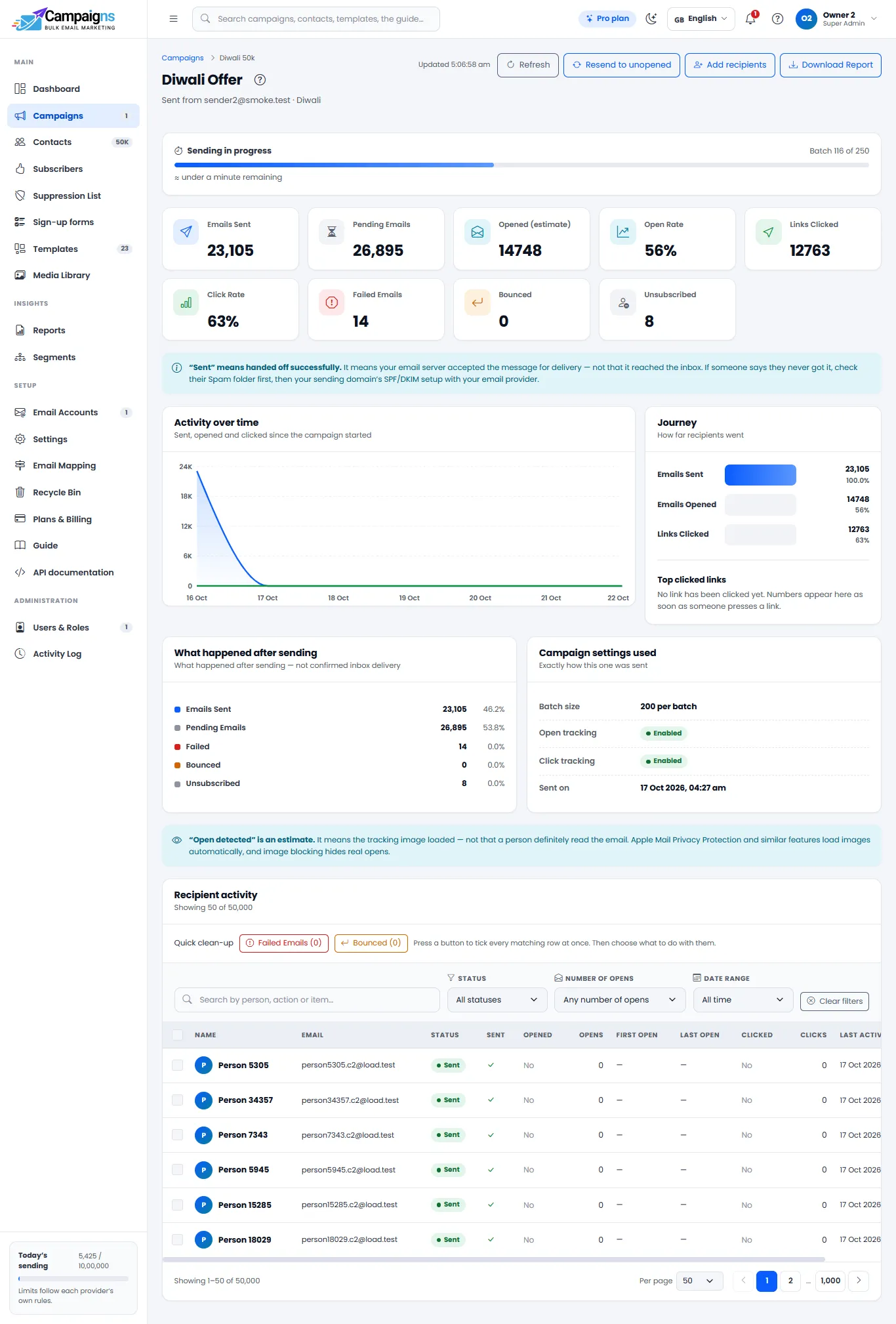
Watch it go
The campaign page shows live progress, batch by batch, with the time left, updating every 30 seconds. If it pauses, the same place tells you why and what to do. Pause and Resume are one press each.
- Daily and monthly limits come from your plan and your account; a campaign that reaches today's limit pauses and continues tomorrow
- Quiet hours (Settings > Sending): the campaign waits between 9 pm and 8 am and carries on by itself
- Resend to the people who did not open, or follow up with the people who clicked, in one press; "Sent 2", "Sent 3" shows who was emailed more than once
- Filter and search the Campaigns list by status, account or date; tick rows to delete several at once (they wait in the Recycle Bin)
- Campaign approval (Growth and Pro): a second person checks and approves before anything is sent
Important: Always send a test email to yourself first and open it on a phone as well. The test uses the real template, so what you see is what your customers get.
10Reports: read the results
Opens and clicks start appearing within minutes of sending. Every number has a clear meaning, so you know what you can trust.
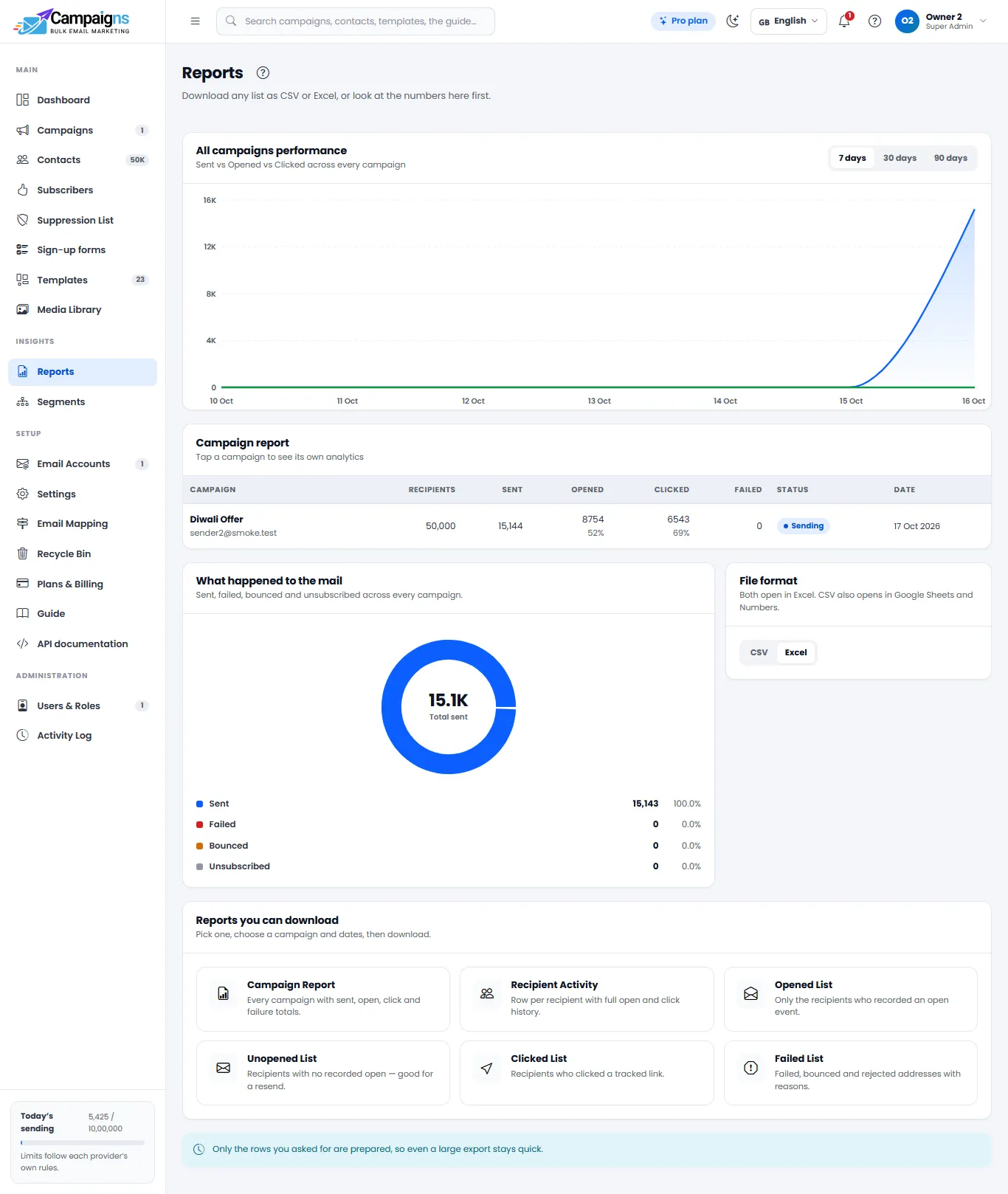
- Sent: your email account accepted the email for delivery
- Opened: the email was opened (an estimate, not proof of reading)
- Clicked: someone pressed a link in your email; the number you can trust most
- Bounced: the address does not exist or refused the mail; it is blocked from future sends
- Unsubscribed: they asked to stop; they go on the Suppression List and are never emailed again
One campaign
Open the campaign and press View analytics: the journey (how far people went), the top clicked links, activity over time, and a log for every recipient with each open, click, bounce or unsubscribe, the device used and, if you turn it on, the country.
All campaigns
The Reports page compares sent, opened and clicked across every campaign and shows where mail ended up: delivered, bounced or failed. Recipient activity shows one person at a time.
Download
Pick a report (Campaign Report, Recipient Activity, Opened, Unopened, Clicked or Failed), a date range and CSV or Excel, and download. Large exports stay quick because only the rows you asked for are prepared.
Note: Open tracking and basic reports are on every plan. Click tracking and the advanced reports (Excel / CSV downloads, opens heatmap, top links, each recipient's timeline) start with the Starter plan. Each plan keeps every open and click for a set number of months: 3 on Free, 6 on Starter, 12 on Growth and Pro.
11Segments: pick people by a rule
From the Starter plan up, a segment is a saved rule that picks people, for example "opened the Diwali campaign but did not click" or "city is Delhi and tag is vip". Its count stays live as your list changes.
Build it
Open Segments, press New segment, name it, and add conditions: opened, did not open, clicked, did not click, failed, unsubscribed, status, tag, group, company or city. Join them with "all" or "any". The builder shows how many people match as you go.
Use it
Pick the segment as the recipients of a new campaign, open its contacts, export it, or press Resend to unopened / Follow-up to clicked for a one-press follow-up campaign.
12A/B tests: let readers choose the winner
From the Starter plan up, an A/B test sends two to four versions of a campaign to a small slice of the audience and the winner to everyone else, automatically.
Save as draft
Build the campaign as usual and press Save as Draft on the last step; its analytics page opens.
Set up the test
Press Set up an A/B test and choose what to test: subject line, content, subject + content, sender name or reply-to address. Add 2 to 4 variants and fill in only the field being tested.
Audience and winner
Choose the test slice (say 20%), how the winner is picked (open rate, click rate or click-to-open rate) and how long the test runs, from 1 hour.
Start
Press Start A/B test. The slice goes out right away; everyone else waits. When the results are confident enough, or the time ends, the winner is sent to the rest. You can pick a winner by hand any time. Nobody receives two versions.
13Sign-up forms for your website
On the Growth and Pro plans, a sign-up form collects new subscribers from your website straight into Contacts, with double opt-in and spam protection built in.
Make the form
Open Sign-up forms and press New form. Give it a name only you see, choose Live or Paused and the form's language. Email is always asked; set Name and Phone to off, optional or required, and tick any of your own fields. Choose the group new people join and the tags they get.
Texts and colours
Title, a short introduction, button text, thank-you message and a consent line, plus the button, text and background colours. A live preview shows the form as you build it.
Put it on your website
Save, then open "Put it on your website": copy the embed code (one frame, no script; it works in any website builder) and paste it where the form should appear, or share the hosted link.
Double opt-in
New people get a confirmation email from the account you choose. Until they press Confirm they are Pending: not a contact, not in any campaign, not counted in your plan. After confirming they become a Subscribed contact.
See who signed up
"Who signed up" lists everyone with Pending or Joined, whether they ticked consent, their IP address and the times.
Tip: Protection is always on: a hidden trap for robots, a minimum time to fill in the form, one use per form load, limits per visitor and per form, and at most a few confirmation emails a day per address.
14API, webhooks, Email Mapping and WooCommerce
On the Growth and Pro plans, Campaigns connects to the tools you already use: your website, your WooCommerce shop, your CRM, or no-code tools such as Zapier, Make and Pabbly Connect.
Webhooks (no developer needed)
The moment something happens (an email sent, opened, clicked or bounced; a contact added, changed or deleted; someone subscribed or unsubscribed; an import finished), Campaigns sends a small message to a web address you choose. In Zapier or Make start with a "Webhooks / Catch Hook" trigger, paste its address into Settings > Webhooks, press Send test, and build the rest there. Up to 5 webhooks, each with its own events and signing secret; failed deliveries are retried and listed under Recent activity.
API keys
Let your own program read your contacts, add people, create and send campaigns. Make a key in Settings > API keys: Full access, Read only, or limited to chosen modules, with an optional expiry date. The API documentation page in the app lists every call with its fields, an example body and a curl example.
Transactional emails
Your website or shop sends one email to one person through Campaigns: an order confirmation, a login code, an invoice note, or a cart reminder sent an hour later. Products and pictures are filled in from the data you send; sends are listed under Settings > API keys > Transactional emails for 30 days.
Email Mapping
Choose which of your own templates goes out for five events: order confirmed, order shipped, cart abandoned, contact form submitted and welcome / sign-up. Your code then only names the event; Campaigns picks the template.
WooCommerce plugin
On the Email Mapping page download the free plugin, install it in WordPress (Plugins > Add New > Upload), paste your API key, and your shop's order and cart emails go out with your templates, with the order number, items and totals filled in.
Note: Every webhook delivery is signed with your secret, every key works only inside your own company with the role of the person who made it, and transactional emails count towards your plan like campaign emails.
15Users & Roles, Activity Log
Invite your team and decide exactly what each person may do. Everything anyone changes is written in the Activity Log with the before and after values.
Add people
Users & Roles > Add user: name, email, department and a role (Super Admin, Admin, HOD or Member). They get an invite email to set their password. Deactivate or remove someone from their row; the last Super Admin can never be removed, and nobody can deactivate or delete themselves.
Set permissions
Roles & permissions is a grid: each row a section of the app, each column an action (view, create, edit, delete, send, export, erase). Tick, then press Save Changes. From the Starter plan you can make your own roles ("Sales team") and limit which email accounts a role may send from. Sections your plan does not include are not shown; they appear when you upgrade.
Activity Log
Who did what, when, in which section; press a row for the full details. Search by person, action or item, filter by time or section, and export it. Only a Super Admin can delete entries, and every deletion is itself recorded.
Note: The Free plan has 1 team member and 1 email account, Starter 3 and 3, Growth 10 and 10, Pro 25 and 25 (shown as "20+"). The Activity Log keeps the last 3 months of entries.
16Sign-in security
Everyone can protect their own account; Super Admins can set rules for the whole company. All of it is on every plan.
Your own account
Profile menu > Sign-in & security: change your password (a checklist ticks your company's rules as you type), turn on two-step sign-in with Google Authenticator, Microsoft Authenticator or Authy, and see every browser and device signed in (Settings > Where you're signed in): Sign out next to each, tick several and press Sign out selected, or Sign out of all other devices.
Sign in with Google / Microsoft
When the buttons are shown, press one and choose the account with the same email your company added you with. It never creates new accounts.
Company rules (Super Admin)
Settings > Security: two-step sign-in for everyone or for chosen roles; Google / Microsoft sign-in only; allowed office networks (IP addresses or ranges); password length, characters, reuse and expiry; idle sign-out. People and sessions shows who has two-step on and lets you end anyone's sessions.
Note: Every rule change, Google / Microsoft sign-in, refused network and ended session is written in the Activity Log. New-device sign-ins are emailed to the person.
17Campaign approval: a second pair of eyes
On the Growth and Pro plans, a Super Admin can require that every campaign is approved before it goes out.
Switch it on
Settings > Approvals & consent: turn on "Campaigns need approval before sending" and tick the roles that approve.
Send for approval
Everyone else builds campaigns as usual; the last button says Send for approval. Scheduling or starting an A/B test sends it for approval too.
Review
Approvers get a bell notice and a "Waiting for approval" filter on Campaigns. The review shows the email as it will look, the recipients, the time and the files. Press Approve and send, or Send back with a comment.
Changed after approval?
Any change to the email, sender, files, recipients or time sends it back to "Waiting for approval". Every step is written in the Activity Log.
18Languages: 21 for the dashboard, any for your emails
Campaigns speaks your team's language. The whole dashboard, every page, button, message and the in-app Guide, can be switched to any of 21 languages. Each person chooses their own from the globe icon in the top bar or Settings > Language; it does not change anyone else's screen.
- Indian languages: Hindi, Hinglish (Romanised Hindi), Gujarati, Marathi, Bengali, Tamil, Telugu, Malayalam, Kannada, Punjabi
- World languages: English, Arabic (right-to-left), Spanish, French, German, Portuguese, Chinese (Simplified), Russian, Thai, Japanese, Korean
- Dates, numbers and currency follow the chosen language
Your emails: any language
Write a template in whatever language your customers read. The Email Language label on the template helps your team tell templates apart, and the campaign takes that language automatically; it shows as a badge on the Review & Send screen.
Automatic emails
Invites, password resets, confirmation emails and notices go out in each person's preferred email language (Settings > Profile, or set by an admin in Users & Roles). When a language has no version yet, the English one is used, so nothing ever fails.
Sign-up forms
Each form has its own language for its texts, its messages, its confirm page and its confirmation email.
Tip: Look & feel in Settings also lets you pick a light or dark screen; the moon icon in the top bar switches it any time.
19Settings: profile and company defaults
Settings has a section for you and sections for your whole company (Super Admins and roles with the Settings permission).
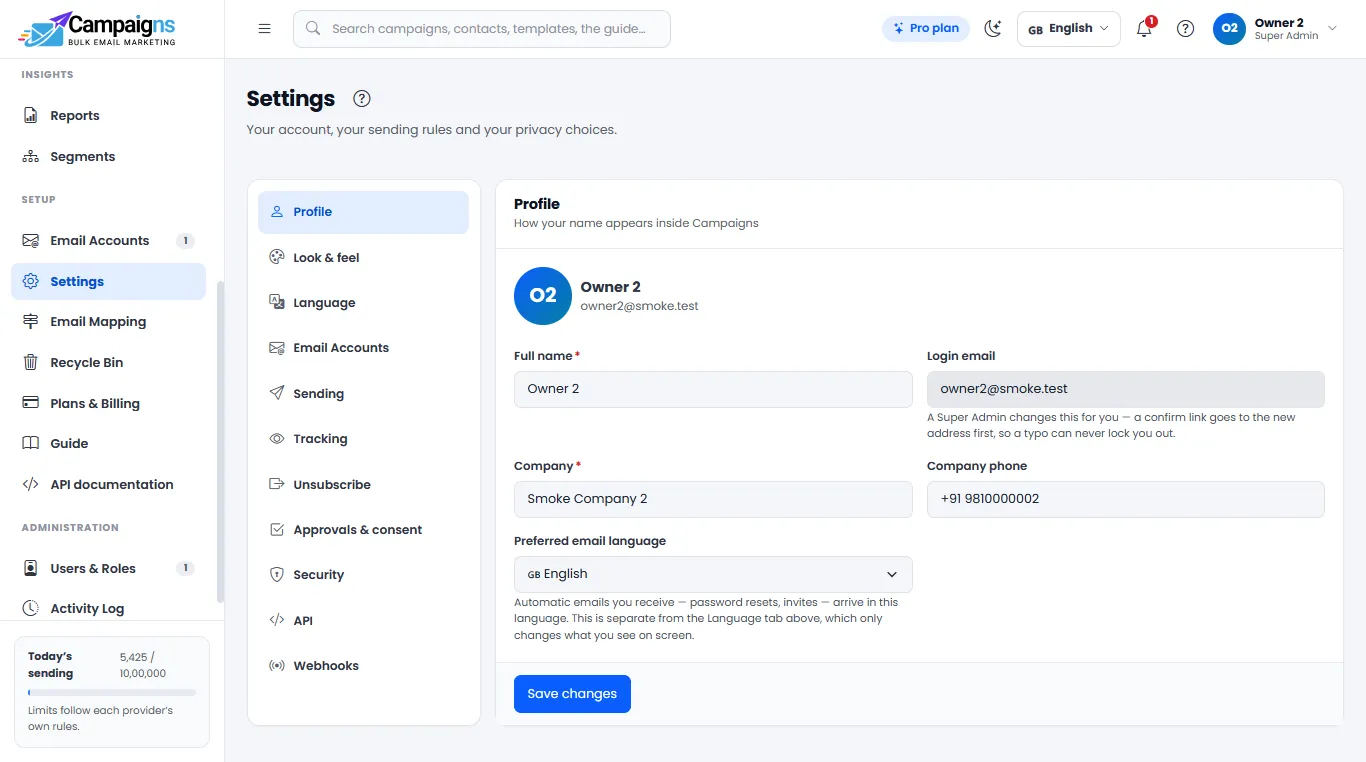
- Profile: your name, preferred email language; company name and phone (the whole company's details)
- Sign-in & security: password, two-step sign-in, signed-in devices
- Sending: default batch size and delay for new campaigns, quiet hours (9 pm to 8 am)
- Tracking: default open / click tracking, approximate location (country only) of opens and clicks
- Unsubscribe: the wording of your unsubscribe page, and whether opting out applies to all accounts
- Approvals & consent: campaign approval, and whether new sign-up forms use double opt-in
- API keys and Webhooks (Growth and Pro)
- Template options: switch any of the editors off for your workspace
- Storage and Image Storage: your own S3-compatible bucket, and where new uploads go
- Language and Look & feel: your dashboard language, light or dark screen
20Recycle Bin and data rights
Nothing you delete is gone at once, and anyone can ask you for their data or to be forgotten; both are one press.
Undo a delete
Deleting a contact, group, segment, template, campaign, image or role moves it to the Recycle Bin for 30 days; the message that appears has an Undo button. Open Recycle Bin in the left menu to see what was deleted, by whom, when, and how many days are left; press Restore to bring an item back with everything it had (a campaign with its recipients, opens and clicks). Delete forever removes it at once.
Export a person's data
Contacts > the shield button on a person's row > Download export: a JSON file and a readable HTML page with their profile, your fields, groups, tags, consent records and email activity. Up to 100 people at once.
Erase a person for good
Type ERASE and confirm. Their personal data is deleted everywhere; your reports keep their numbers as anonymous rows, and a one-way code stays on the Suppression List so they are never emailed again. Only the Super Admin and roles given Erase can do this; the Activity Log records how many people, never who.
21Keeping your emails out of spam
Whether an email lands in the inbox is decided by Gmail, Outlook and the other providers, not by any sending tool. Campaigns does its part automatically and tells you what is left for you to do.
- Set up SPF, DKIM and DMARC for your domain and send from an address on it; the Domain check shows the exact records
- Warm up: a new account starts at 300 emails on day one and doubles daily; small batches with a wait are safer than one huge batch
- Keep the list clean: only people who agreed, bounced addresses suppressed automatically, never email someone who unsubscribed
- Write like a person: a clear subject that matches the email, mostly real text with images to support it, a few links to your own site
- An unsubscribe link and the one-click unsubscribe signal Gmail and Yahoo ask for are always added; the link opens a page with a button, so email scanners cannot unsubscribe people by accident
Important: Sending pauses by itself when a list clearly hurts delivery: more than 10% bounces or more than 5% unsubscribes in one campaign of 50+ emails, or more than 5% bounces or 3% unsubscribes over the last 7 days. Your Super Admins and Gowebkart get an email; clean the list, and Gowebkart switches sending back on (the emails that caused the pause are not counted again).
22Plans: Free, Starter, Growth and Pro
Open Plans & Billing in the app to see your plan, how much of each limit you have used, the full "What each plan includes" table and the prices. A paid plan is priced by how many contacts you want to manage: 500, 1,000, 2,500, 5,000, 10,000, 25,000, 50,000 or 1,00,000 on every paid plan, and 2, 3, 4 or 5 lakh on Growth and Pro (Starter stops at 1,00,000 and shows "Contact limit exceeded" above it). Each slab allows 10 emails per contact per month (Pro: unlimited) and its own image space, from 50 MB up to 2 GB (2 GB on every size from 2 to 5 lakh). Pay monthly, every 6 months (10% off) or yearly (12 months for the price of 10). Companies outside India see and pay the prices in US dollars, without Indian GST.
Free: never ends
Up to 500 contacts, 2,000 emails a month (200 a day), 1 team member, 1 email account, 20 MB of images, 3 months of open & click history. Email accounts, contact import, 22 ready templates and all four editors, sending and scheduling, open tracking and basic reports, Subscribers and Suppression List, Recycle Bin, data export and erase, sign-in security, 21 languages. Emails carry a small "Sent with Campaigns by Gowebkart" line.
Starter: everything in Free, plus
Click tracking, advanced reports (Excel / CSV downloads, opens heatmap, top links, each recipient's timeline), A/B testing, saved segments, custom team roles, no Gowebkart line in your emails. 3 team members, 3 email accounts, 6 months of history.
Growth: everything in Starter, plus
API keys & webhooks, transactional emails, Email Mapping with the WooCommerce plugin, website sign-up forms with double opt-in, campaign approval. 10 team members, 10 email accounts, 12 months of history.
Pro: everything in Growth, plus
WhatsApp support from the Gowebkart team, a one-time setup help call, and one email template designed for you each month. Unlimited emails a month, up to 25 team members and 25 email accounts (shown as "20+"), 12 months of history.
How to upgrade
Plans & Billing > Choose a plan: pick how many contacts, Monthly, 6 months or Yearly, and press Choose plan on the plan you want.
Pay
Pay the amount shown to the bank account or UPI ID in that window (outside India: PayPal, Wise or an international transfer, in US dollars), add the payment screenshot (on a phone the camera button takes a photo of it) and the transaction ID (UTR) if you have it, and send. GST, when charged, is shown before you pay. On an upgrade the window shows the price, the credit for your unused days and what you pay.
Start using it
Gowebkart confirms the payment with the bank; your plan starts straight away and the invoice (PDF) is emailed to your Super Admins. The invoice says whether it was a new plan, a renewal or an upgrade, what the plan includes (contacts, emails, team members, email accounts, image storage) and any credit taken off. Payment history lists every plan you bought, with its invoice.
- Renewing the same plan before it ends adds the new period after the current one; you never lose paid days
- Upgrading mid-period (a bigger plan, more contacts or a longer period): it starts the same day, and the unused days you already paid for come off its price — the pay window and the invoice show this credit
- Moving down: nothing is refunded; the limits you paid for stay until the paid days end, then the smaller plan starts
- Image storage is the total space for your images, not a monthly allowance: renewing keeps the same space with your images in it
- Storage full? Nothing is deleted, new uploads stop: delete images you no longer need (the Recycle Bin counts until emptied), add an extra storage pack from Plans & Billing, or move to a bigger plan
- An extra storage pack bought part-way through costs only the days left; a bigger pack later costs only the difference
- When a plan ends you can still sign in and see everything; sending and changes stop until you renew. Nothing is deleted
- Your Super Admins are emailed three days before a paid plan ends, when it ends, and whenever Gowebkart changes your plan or limits
23When something looks wrong
Most messages in the app tell you what to do next. These are the ones people ask about most.
- "Nobody to send to": everyone in that list has already unsubscribed or bounced; Campaigns refuses to email them again on purpose
- "Sent" but the person says nothing arrived: sent means your provider accepted it; ask them to check Spam, then run the Domain check
- "Connection failed" while adding an account: usually a normal password was typed where an App Password or API key is needed
- "Paused — daily limit reached" or "plan limit reached": the campaign continues by itself tomorrow, or after you upgrade or renew and press Resume
- Image space full: nothing is deleted; delete images you no longer need (the Recycle Bin counts until emptied), add an extra storage pack, move to a bigger plan, or paste the link of an image that is already online
- "Paused — mail server not reachable": an internet problem; nothing is lost, it retries every 5 minutes
- "Waiting for a quick check by Gowebkart": the content check wants a human look; the campaign goes out as soon as it is cleared
- "… is part of the Starter plan and above": that feature is not in your plan; Plans & Billing shows which plan brings it
- "You do not have permission": nothing is broken; ask your Super Admin to tick that section for your role
Tip: The in-app Guide (left menu) has a chapter for every page, in your language. Press the ? in the top bar on any page to open the chapter for that page.